2026 AI Trends for Solo Business Owners: Automation & No-Code Workflows

If you’re running a one-person business, you’ve probably felt the pressure to use AI for everything—but between daily client work, endless tool lists, and unclear costs, it’s hard to know where to start without wasting time or money. This article skips the hype and breaks down the AI trends that actually matter for freelancers and solo founders in 2026, with a focus on automation and no-code workflows you can act on without a developer. We’ll look at what’s changing, which tools are worth a closer look, and how to test them in a way that fits a busy, budget-conscious operation.

Table of Contents

  1. What Solo Founders and Freelancers Need to Know About AI in 2026
  2. Why AI Trends Matter Now for Solo Businesses
  3. Key AI Trends and Tool Categories Worth Knowing
  4. How to Test an AI Automation in One Afternoon: A Step-by-Step Example
  5. Deciding Which Trend to Act On First for Your Business
  6. Checklist and Caveats Before Adopting New AI Tools
  7. Frequently Asked Questions
  8. Wrap-Up

What Solo Founders and Freelancers Need to Know About AI in 2026

The core shift isn’t about having more AI tools—it’s that solo operators can now run tasks that used to require a small team. General-purpose assistants like ChatGPT and specialized platforms like Jasper have become reliable enough for client-facing work, while no-code automation platforms let you connect those tools to your everyday workflows. That means a freelancer can automate personalized follow-ups, categorize leads, or generate draft proposals without writing a line of code. But there’s a catch: the same tools can produce generic output and create more busywork if you skip testing them against real client expectations first. For anyone with limited time, the priority is picking one automation that replaces a repetitive manual step—not trying to automate everything at once.

💡 Before you jump in
If you’re already overwhelmed by tool choices, start by tracking where you spend the most time on repetitive admin for two days. Only automate something you fully understand first—otherwise the setup eats the time you’re trying to save.

Why AI Trends Matter Now for Solo Businesses

Solo operations aren’t a niche anymore. Recent data shows over 50 million Americans are involved in freelance or solo ventures, a 15% increase from 2025, driven by remote work normalization, economic uncertainty pushing side hustles, and tech stacks that lower entry barriers. At the same time, AI tools are no longer a nice-to-have—they’re becoming the difference between scraping by and scaling sustainably. Solo founders are now launching products without VC funding, with about 38% of these startups having no outside investment, thanks in part to generative AI and no-code platforms. For freelancers and small business owners, this means competition is rising from people who spend less time on manual work and more on client relationships and creativity. If you’re still doing everything by hand, you risk falling behind not because of a lack of skill, but because your available hours haven’t changed.

Key AI Trends and Tool Categories Worth Knowing

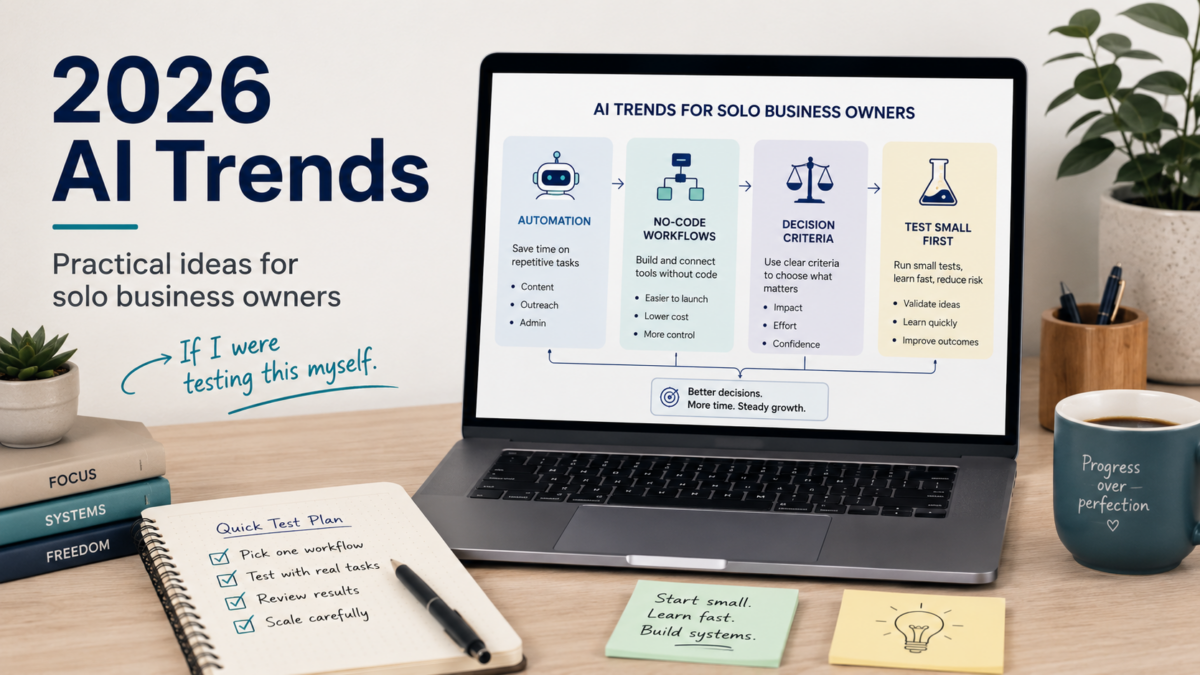
From a non-developer PM perspective, the trends that actually affect daily work fall into three practical buckets. First, general-purpose AI assistants like ChatGPT can now handle content drafting, research, and even light data analysis with enough reliability to save hours each week—but you’ll need to fine-tune prompts to avoid sounding generic. Second, specialized AI tools for writing, design, and coding (Jasper for marketing copy, and emerging design aids) let you offer new services or speed up existing ones. Third, no-code automation platforms connect these AI tools to your existing apps, so a new lead from a web form can automatically trigger a personalized draft email ready for your review. The catch is that many tools add up in cost quickly, and the learning curve for connecting them can be steeper than tutorials suggest. For a solo business owner, I would look for tools that charge per usage rather than per month when testing, so you aren't locked in before you prove value.

Trend / Category What it helps with Typical risk for solo users
General-purpose AI (e.g., ChatGPT) Content drafts, research, client communication outlines Output can feel generic; prompt tuning takes trial and error
Specialized AI (e.g., Jasper for copy) Faster high-quality writing, design, or niche tasks Monthly cost without enough volume makes ROI unclear
No-code automation (e.g., n8n, Zapier, Make) Connecting apps and AI steps into a repeatable workflow Setup time and error handling can be time-consuming upfront

How to Test an AI Automation in One Afternoon: A Step-by-Step Example

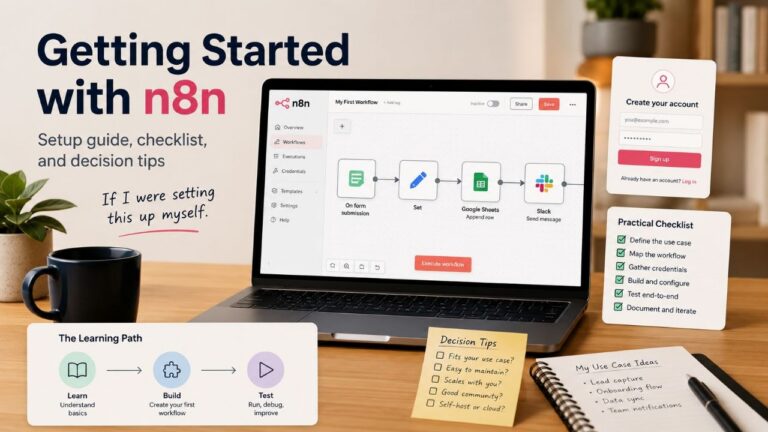
If I were setting this up myself as a freelancer, I'd start with something small but immediately useful—like automatically drafting a personalized reply when a new inquiry comes through a website form. This uses no-code automation to connect a trigger (form submission) with an AI step and store the result for my review. It costs almost nothing to test and avoids sending AI-generated emails to clients without human oversight.

Step Action
1 Pick an existing form that already gets inquiries
2 Sign up for a no-code platform and prepare the trigger
3 Add an AI node with a simple prompt
4 Save the AI output for manual review
5 Example prompt for drafting a personalized reply
6 Test with one real inquiry and measure
  1. Pick an existing form that already gets inquiries
    Use a contact form on your website or a tool like Google Forms. The goal is to have a real inbound channel, not a hypothetical one.
  2. Sign up for a no-code platform and prepare the trigger
    Create a free account on n8n (self-hosted or cloud trial) or Make. Set up a new workflow that starts with a webhook or a built-in app trigger for your form tool. This will catch new submissions automatically.
  3. Add an AI node with a simple prompt
    Insert a node that calls an AI API, such as OpenAI’s. Use a prompt like the one below—keep it short and focused on the exact reply you want to review.
  4. Save the AI output for manual review
    Connect the AI node to a Google Sheets or Airtable node that logs the date, client name, original message, and AI-generated draft. Do not send the email automatically; you’ll review and edit it first.
  5. Example prompt for drafting a personalized reply

    You are a helpful assistant for a freelance [your service]. The client sent this message: "{{form_message}}". Write a friendly, 3-sentence reply that thanks them, asks one clarifying question, and proposes a 15-minute call next week. Do not include any links or placeholders. Tone: professional but warm.
  6. Test with one real inquiry and measure
    Let the workflow run on a single submission. Check the saved draft—did it need heavy editing? If it saved you 5–10 minutes, note that. If not, tweak the prompt and run it again before expanding to more triggers.

💡 Safety note
Always keep a human review step before AI-generated content reaches a client. Automating the draft is useful; automating the send without checking is risky, especially in client relationships.

Deciding Which Trend to Act On First for Your Business

Not every trend fits every solo business. A copywriter might need AI content tools, while a local service business might get more from workflow automation. Use the table below to match your main pain point to the category that gives the fastest time saving with the least complexity. For a freelancer juggling multiple clients, I would start with a single automation that reduces back-and-forth scheduling or follow-ups. For a small local business, I would first check whether existing tools (like calendar apps or email templates) can be connected before adding a new AI subscription.

Your situation Most practical next step Things to watch
I spend hours writing similar emails/proposals Try an AI drafting step in your workflow with manual review Don't skip prompt testing—generic drafts cost you credibility
I lose track of follow-ups and client details Build a simple no-code automation linking form to a task + log Start with one integration; multi-step flows break more easily
I want to offer a new service but lack time to learn Use specialized AI tools to create a sample deliverable, then assess Clients may still expect your expertise, not just AI output

Checklist and Caveats Before Adopting New AI Tools

Before committing to a paid plan or spending a weekend on setup, run through this checklist. It’s easy to underestimate how much maintenance a new automation needs once real-world data hits it.

  • Data privacy: Review the AI tool’s data usage policy before entering client information. Some free tiers use inputs for training.
  • Output quality: Run a test batch of at least 5 real-world scenarios and compare the AI output to what you’d do manually.
  • Cost trajectory: Check whether pricing scales reasonably as your usage grows. A tool that’s cheap at 100 tasks can become expensive at 1,000.
  • Time to maintain: Plan for a regular 30-minute review of your automations—broken connections, API changes, or prompt drift happen.
  • Fallback: Keep your manual process for a few weeks in parallel so a failed automation doesn’t cost you a client.

💡 If a tool feels like extra work, pause
Not every AI addition will work on the first try. If you spend more time fixing outputs than the task used to take, stop and simplify. The goal is less mental overhead, not more.

Frequently Asked Questions

Do I need coding skills to use these AI automation trends?

Not necessarily. No-code platforms like n8n, Make, or Zapier offer visual builders, and many AI tools provide simple web interfaces. You may need to read documentation and handle API keys, but you don't need to write code from scratch. If you can follow a tutorial and copy-paste a prompt, you can get started.

How much does it cost to test an AI automation for a solo business?

Most tools have a free tier or low-cost pay-per-use option. For a simple workflow like the one described, you might spend $0–$10 on API credits while testing. The bigger cost is your time setting it up. Start with a free trial and measure results before upgrading.

Which AI trend should I try first as a freelancer?

Focus on the task that steals the most time weekly. If it's writing client emails, try an AI draft step. If it's project follow-ups, test a no-code automation. Avoid chasing trends that don't directly reduce your repetitive workload—even if they look impressive.

Is my client data safe if I use AI tools for automation?

It depends on the tool. Check the privacy policy and terms of service: some AI providers use your inputs to improve models unless you opt out or use enterprise versions. For sensitive data, choose tools that offer data processing agreements and don't retain inputs beyond the session.

What's vibe coding and is it relevant for a non-technical solo business owner?

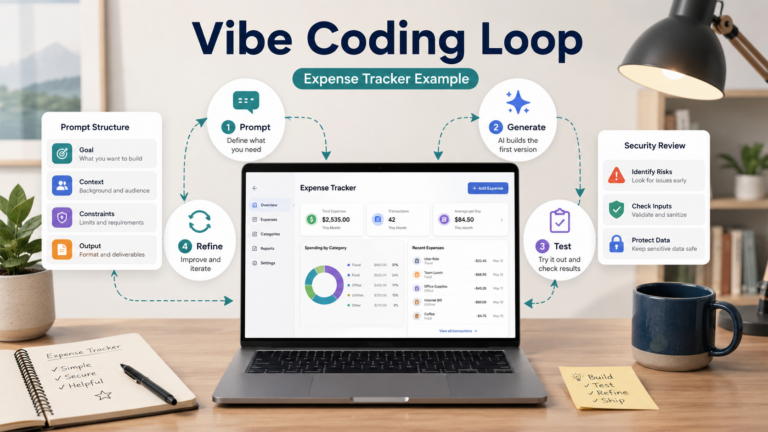
Vibe coding refers to using AI to generate entire codebases or apps through natural language prompts, often without deep programming knowledge. It’s fueling solo businesses that want to build custom tools quickly. For a non-developer, it can help prototype simple internal tools, but it still requires critical thinking to test and secure the output. It’s worth exploring if you have a specific tool idea that off-the-shelf software doesn’t solve.

Wrap-Up

The AI trends that matter for solo business owners in 2026 are less about the latest model names and more about picking the one or two workflow improvements that clear up real time for client work. Start by identifying a single repetitive task that bugs you weekly. Test a no-code automation that pairs a trigger with an AI step, and keep the manual review in place until the output earns your trust. Skip any tool that takes longer to maintain than the task it replaces. If you run into walls, come back to the checklist and scale back—practical progress, not tool adoption, is what pays the bills.
OpenClaw vs Hermes for Solo Automation: 2026 Comparison

If you’ve spent evenings scanning Reddit threads comparing OpenClaw and Hermes, you’re not alone—the choice between these two open-source AI agent frameworks feels like a fork in the road for any solo founder. Both promise to automate repetitive tasks, but the real question is which one fits your actual workflow without eating up your limited time. I’ve been digging into what separates them from a non-developer PM perspective, and this piece lays out a practical comparison focused on setup simplicity, cost, and real solo business use cases. No winner-take-all picks, just decision criteria to help you move forward.

Table of Contents

  1. At a Glance: What Should a Solo Business Owner Know?
  2. Why OpenClaw vs Hermes Matters Right Now
  3. How OpenClaw and Hermes Actually Differ
  4. Setting Up a Simple Lead Processing Workflow: A Non-Developer Walkthrough
  5. Deciding Which Agent to Start With
  6. Checklist Before Committing to an AI Agent
  7. Frequently Asked Questions
  8. Wrap-Up

At a Glance: What Should a Solo Business Owner Know?

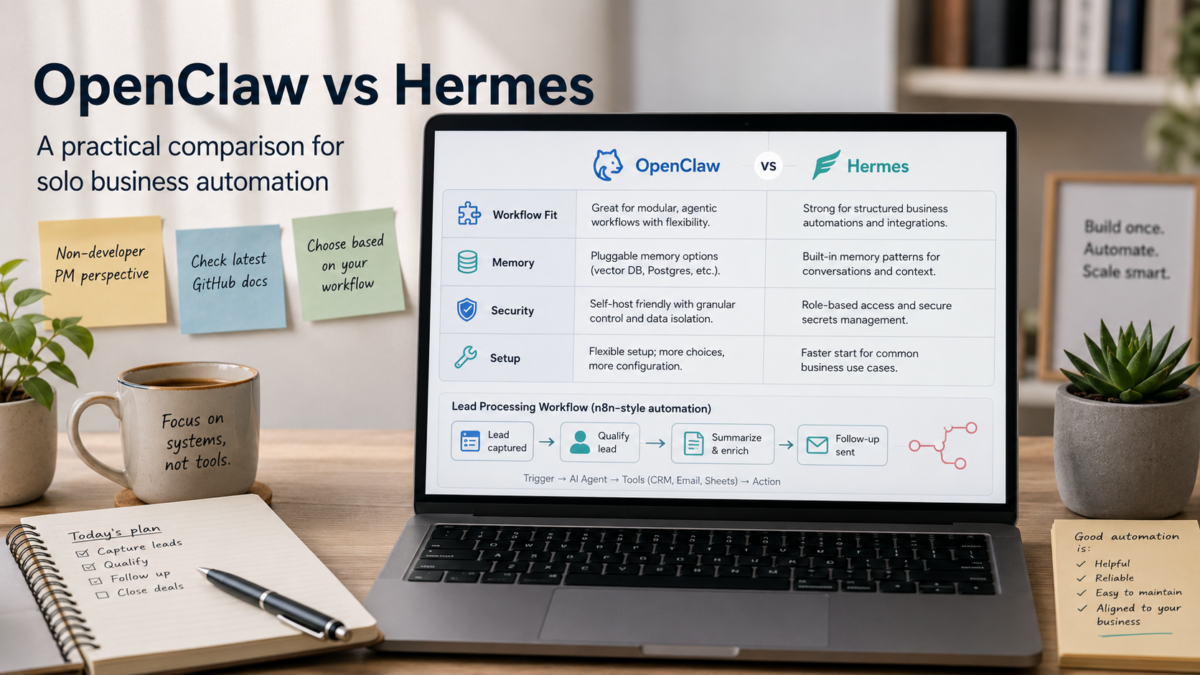
OpenClaw and Hermes are the two dominant open-source AI agent frameworks in 2026, but neither is a clear winner for every situation. OpenClaw (345K GitHub stars, 13,700+ skills) shines at integration and tool coverage, while Hermes (110K stars) stands out with a self-improving learning loop that remembers your workflows over time. Experienced users often pair them—OpenClaw as the orchestrator, Hermes as the execution specialist—but that adds complexity. If you need one agent to start with, base your pick on whether you prioritize plug-and-play connections (OpenClaw) or an agent that gets better the more you use it (Hermes).

Why OpenClaw vs Hermes Matters Right Now

Both tools have attracted massive communities—r/openclaw alone has 103,000 members and dozens of comparison threads—because they represent two different automation philosophies. OpenClaw focuses on instant compatibility with APIs, browsers, and code runners; Hermes invests in memory layers that convert successful tasks into reusable skills automatically. For a solo business owner, this isn’t just a feature checklist—it’s about whether you want an agent you can wire up quickly today or one that will compound your own processes over weeks. The rapid release cycles (OpenClaw at 137 releases, Hermes at 11 as of May 2026) make it worth understanding where each one is headed before building your stack around it.

💡 Note
All comparisons here draw from community analysis, independent audits, and the official documentation of both projects. Always double-check the latest GitHub README and security advisories for any agent before running it on sensitive data.

How OpenClaw and Hermes Actually Differ

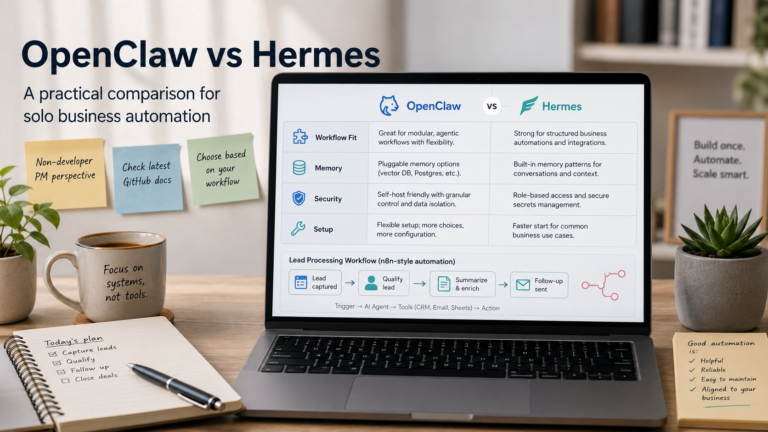
The core split isn’t about more features versus fewer—it’s about how each agent thinks and helps you work. Below is a quick-reference table for the decisions that affect most solo setups. After that, I’ll walk through what each difference means for a real small-business workflow.

Capability OpenClaw Hermes Agent
Core Strength Extensive integrations and a massive skill library Self-improving memory that learns your procedures
Memory Model Session- and skill-based context Layered memory: notes, searchable history, procedural skills
Skill Creation Pre-built skills from a community library; custom skills require definition Automatically creates skills from successful workflows
Ease of Setup Quick for general automation; many examples Simpler for beginners on repetitive tasks; multi-agent patterns need more initial thought
Security Model Highly scrutinized; documented CVEs; fast community patches Seven-layer security model (less battle-tested at scale)
Best For Multi-step coordination, integrating existing tools Workflows that improve over time, overnight autonomous tasks

💡 Important
OpenClaw has publicly documented CVEs. If you plan to expose either agent to the internet, review the latest security audits and run them in isolated containers. Hermes’ security architecture is designed to be robust, but it hasn’t yet faced the same volume of external testing.

Setting Up a Simple Lead Processing Workflow: A Non-Developer Walkthrough

For a freelancer or small business owner, automating lead intake is a natural first project. I’ll walk through using Hermes Agent because its self-learning can turn repetitive qualification steps into a reusable skill without manual coding. If you prefer OpenClaw, you can swap in a similar approach—it will require more explicit skill definitions but offers broader integrations out of the box.

Prerequisites: an n8n instance (cloud or self-hosted) and a running Hermes Agent environment. Hermes can be deployed locally or on a small cloud VM. Check Hermes’ GitHub for current hardware recommendations; a modest server is typical for light workloads.

Setup Steps at a Glance
1. Deploy Hermes Agent
2. Create an n8n webhook to catch new leads
3. Send lead data to Hermes for enrichment
4. Set up a Hermes skill with a few examples
5. Test with a dummy lead and check the output
6. Add error handling and a weekly review step

  1. Deploy Hermes Agent
    Clone the official Nous Research repository and follow the installation guide. Start Hermes in autonomous mode with a local model (e.g., Llama 3 or a compatible open model). Confirm the agent is listening on a local port with a simple curl test.
  2. Create an n8n webhook to catch new leads
    In n8n, add a Webhook node and set it to receive POST data from your contact form. For testing, you can use a dummy JSON body containing name, email, and a brief message. Turn on the workflow and copy the webhook URL.
  3. Send lead data to Hermes for enrichment
    Add an HTTP Request node after the webhook. In the URL field, point to your Hermes endpoint (e.g., http://localhost:5000/enrich). Set method to POST and include the incoming JSON as the body. Hermes will use its memory to look up similar past leads and return a qualification note. Use the node below to see a simplified request.
  4. Set up a Hermes skill with a few examples
    Before full automation, feed Hermes 5–10 sample leads manually with your preferred labels (e.g., “hot,” “needs follow-up,” “not a fit”). This gives the agent patterns to learn from. A sample training prompt is shown in the code snippet.
  5. Test with a dummy lead and check the output
    Manually trigger the n8n webhook with a test lead. Hermes should return a classification and a suggested next step within a few seconds. Verify the output is consistent. If not, review the agent’s logs and adjust the training examples.
  6. Add error handling and a weekly review step
    In n8n, add an IF node to check the HTTP response code. On failure, route to an email notification so you can intervene. Once per week, scan the agent’s skill library to review any new behaviors it has created and remove ones that don’t match your process.

Sample n8n HTTP Request configuration

{
  "url": "http://localhost:5000/enrich",
  "method": "POST",
  "body": {
    "name": "{{$json.name}}",
    "email": "{{$json.email}}",
    "message": "{{$json.message}}"
  },
  "headers": {
    "Content-Type": "application/json"
  }
}

Training prompt snippet for Hermes

Lead: Jane Smith – looking for bookkeeping services for a small café.
Label: hot – call within 24hrs

Lead: Mike – asked about monthly retainer but no budget shared.
Label: needs follow-up

Deciding Which Agent to Start With

The right first agent depends on how you work today and what you hope to automate first. Use the table below to match your primary use case to a starting point. After the table, I’ll mention how some solo owners combine both.

If you already use OpenClaw, adding Hermes later for memory-heavy tasks is a common pattern. The two communicate via the ACP protocol, so you can use OpenClaw to coordinate and Hermes to execute repetitive loops that learn over time. But start with one. Master it before introducing coordination overhead.

Your Use Case Start With Why
Daily client email follow-ups that should improve over time Hermes Memory layer and self-created skills adapt to your phrasing
Multi-step workflow with existing tools (Airtable, Slack, Stripe) OpenClaw Broad integrations and pre-built skills
Experimenting overnight without writing any tool definitions Hermes Auto-skill creation from successful runs
You need a visual, community-vetted skill library OpenClaw 13,700+ pre-made skills, large Reddit base

💡 Start small
Pick one agent, test it with a single, measurable workflow for one week. Only after you see a real time saving, consider adding complexity or a second agent.

Checklist Before Committing to an AI Agent

Before you wire any agent into live client work, run through these practical checks. They come from the community’s most repeated cautions and my own mental checklist as I explore this space.

  • Clone the official GitHub repo and read the latest README—hardware requirements change between releases.
  • Check for recent CVEs if you plan to expose the agent to the internet. OpenClaw has publicly documented ones; Hermes has a seven-layer model but less adversarial scrutiny.
  • Verify LLM compatibility: does your preferred model (local or API) work cleanly with the agent’s default tool definitions?
  • Budget for cloud compute: review current VM pricing for your region.
  • Set up a test environment before touching any client data—use dummy contacts and isolated APIs.
  • Allocate time for debugging. Even the most mature agents need re-prompting or restarts occasionally.
  • Have a fallback manual process for the first month in case the agent misclassifies a lead or sends a wrong email.

Frequently Asked Questions

Is Hermes Agent free to use?

Yes, both OpenClaw and Hermes are open-source and free to self-host. You will need to provide your own compute (local server or cloud VM) and your own LLM API keys or local models. Some managed hosting services for Hermes are emerging, but they come with separate pricing.

Can I use both OpenClaw and Hermes together?

Yes. Many experienced users run OpenClaw as the orchestrator (planning steps, coordinating tools) and Hermes as the execution specialist (fast, repeatable loops). They can communicate through the ACP protocol, as described by the community analysis on Kilo and Reddit.

Which agent is easier for a non-developer to set up?

Hermes may feel easier at first because it creates its own skills automatically and remembers context across sessions. OpenClaw has more community examples and pre-built skills, but you still need some comfort with JSON and command-line. Budget a weekend for either one, even with no-code helpers.

Does Hermes integrate with n8n?

Yes. Both agents expose HTTP endpoints, so connecting them with n8n’s HTTP Request node is straightforward. Use a simple JSON body to send data and parse the response inside your workflow.

What are the security risks when using OpenClaw for client data?

OpenClaw has had publicly disclosed CVEs, so always run the latest version and use isolated containers. Hermes was designed with a seven-layer security model, but it has not yet been tested at the same scale. For either agent, treat all client data as sensitive—don’t expose the agent directly to the public web without authentication, and regularly review log files.

Wrap-Up

OpenClaw and Hermes both make it possible for a solo business owner to hand off repetitive tasks to an AI agent that runs on your own terms. The real advantage isn’t that one is objectively better—it’s that you can start small tonight with a free clone and a test workflow. Next, pick the agent that aligns with your biggest time sink, spin up a test VM, and run the same two-day experiment I just described. Document what works and what doesn’t. Then consult the official GitHub discussions and independent comparisons to verify costs, security, and release notes before you commit. The goal is a repeatable assistant that earns its place in your stack—not more excitement than output.

Starting a Solo Business: A Practical Prep Guide for Freelancers (2026)

Deciding to go solo sounds freeing until you sit down and realise you need a legal structure set up, a bank account that does not mix with groceries, a contract template you trust, and some way to send an invoice that actually gets paid. The scattered advice — half from YouTube, half from a blog last updated in 2019 — makes it hard to know where to start without spending weeks down rabbit holes. This article walks through the core things to prepare before you launch, in the order a solo business owner actually needs them, so you can move from ‘thinking about it’ to a working foundation in a few deliberate afternoons.

Table of Contents

  1. Key Summary: The Foundation You Cannot Skip
  2. Why Setting Up Properly Matters Right Now
  3. The Core Setup: Legal, Financial, and Operational Must-Haves
  4. Step‑by‑Step: Laying Your Solo Business Foundation This Week
  5. Matching the Setup to Your Solo Business Type
  6. Pre‑Launch Checklist and Pitfalls to Avoid
  7. Frequently Asked Questions
  8. Wrap-Up

Key Summary: The Foundation You Cannot Skip

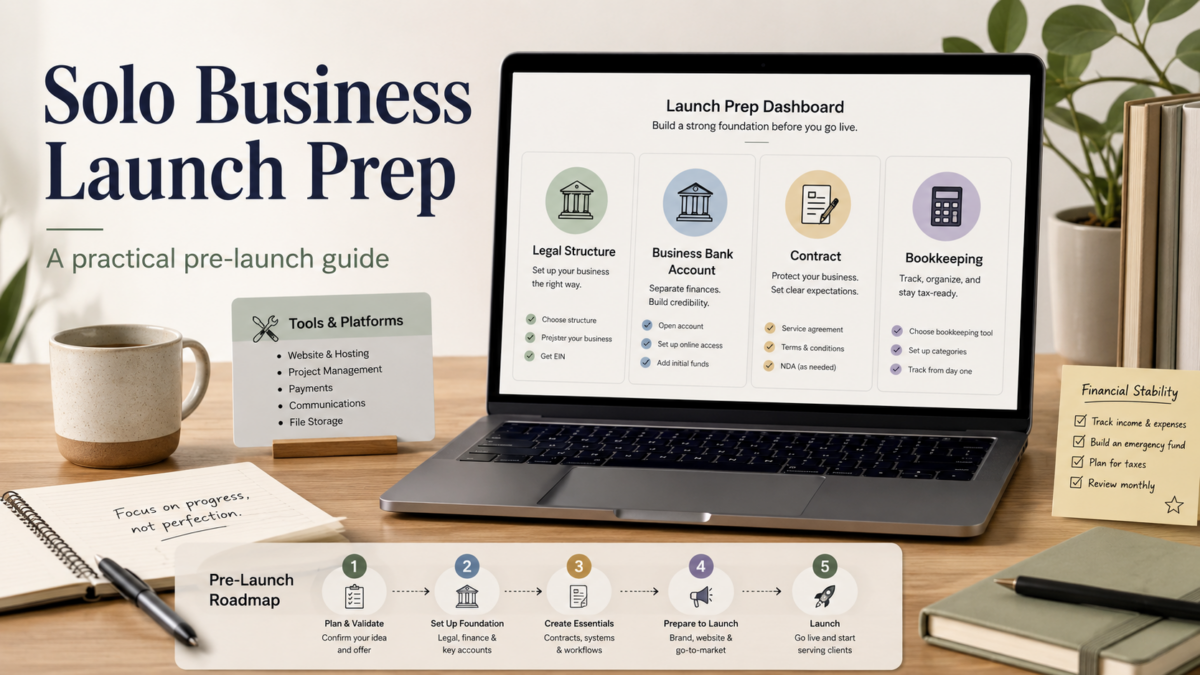
If I were setting this up myself, I would focus on four moves first: pick a legal structure (sole proprietorship or LLC), open a separate business bank account, create a simple contract that you can reuse, and set up a way to track income and expenses. These four decisions prevent most early-stage chaos — crossed money, misunderstandings with clients, and tax surprises. For a freelancer offering services, a sole proprietorship is faster and cheaper to start, but an LLC adds a layer of personal liability protection that is worth considering if your work carries risk. Check your state’s specific registration rules because the cost and paperwork vary more than most articles admit.

Beyond the legal and money side, keep your tool stack intentionally small at first. A basic invoicing app and a folder with your contract and client notes will take you further than a suite of 12 tools before you have a single paying client. The rest of this guide breaks each piece down so you can decide what fits your situation, not someone else’s checklist.

Why Setting Up Properly Matters Right Now

More people are turning to freelancing and solo businesses as full-time roles become harder to find or feel too rigid. Creative Lives In Progress notes that for many creatives, freelancing has shifted from a leap to a necessity. But alongside that shift comes a pile of admin — taxes, contracts, late payments — that solo owners often underestimate until it bites them. Setting up your business structure and systems early is not just about looking professional; it is about giving yourself a legal and financial container that keeps your personal assets separate when something goes wrong.

From a non-developer PM perspective, I treat this the same way I would treat setting up a new project repository: define the environment, lock down the permissions, and document how things run before you ship anything. If you wait until you have five clients to open a business bank account or figure out quarterly taxes, you are already untangling a mess. The cost of not doing this upfront is hidden time and stress you will pay later.

The Core Setup: Legal, Financial, and Operational Must-Haves

Every solo business sits on a handful of structural decisions. The Freelancer Startup Checklist from Freelance From Scratch and the Zenind guide for new solo entrepreneurs both emphasise that treating freelancing like a real business from day one means nailing the legal and financial foundation. Below are the items I would prioritise if I were preparing alone.

First, decide on a business structure. For most solo service providers, a sole proprietorship is the simplest path — no extra registration apart from a local business license in some areas — but it offers zero separation between business and personal liability. An LLC creates a legal wall but involves state filing fees, annual reports, and sometimes a registered agent. The choice usually comes down to how much risk your work carries and how much paperwork you can stomach in year one. Use the table below to weigh your options.

After your structure, open a dedicated business bank account, even for a sole proprietorship. This step alone makes tax time ten times easier and signals to clients that they are paying a business, not a person. Pair it with a simple bookkeeping tool like Wave (free) or a paid option that handles estimates and recurring invoices. Contracts are next — a reusable service agreement with scope, payment terms, and kill fees protects both sides. Templates are widely available; have a lawyer review yours once, then tweak for each project. Insurance is the final layer many solo owners skip until they need it: general liability for premises risk and professional liability (errors and omissions) if you give advice or build things for clients.

Consideration Sole Proprietorship LLC
Ease of Setup Minimal — may only need a local DBA State filing required, plus possible publication or annual fees
Personal Liability Protection None — you are the business Separates business and personal assets in most cases
Tax Filing Reported on your personal return (Schedule C) Still pass-through for single-member, but more formal records needed
Best For Low-risk service work early on Contracts with higher liability, or if you expect to scale
  • Open a separate business checking account (free online options exist; compare fee structures).
  • Choose one bookkeeping tool (Wave, Bonsai, or FreshBooks) and connect it to your bank feed.
  • Draft a contract template and have it reviewed once by a legal professional.
  • Get a simple invoicing flow — many tools combine books, contracts, and invoices.
  • Research professional liability insurance if your work includes consulting, development, or creative deliverables.

Step‑by‑Step: Laying Your Solo Business Foundation This Week

For a solo business owner, I would not try to do everything at once. The following ordered list uses a hypothetical, early‑stage freelance consultant as the base case, but the sequence works for most service‑based solo founders. Each step moves you from zero to an operational setup that can accept a client payment safely.

  1. Define your service and a single clear offer
    Write down exactly what you do and for whom, in one sentence. For example, ‘I help local retail businesses set up their Google Business Profile and manage reviews.’ This clarity makes every later step — from legal structure to marketing — faster. If you cannot describe it in one breath, narrow it down before spending money on registration.
  2. Register your business name and structure
    Go to your state’s Secretary of State website and search for an LLC filing or a DBA (‘doing business as’) if you use a trade name. Most states allow online filing. Grab any required local business license at the same time; the requirements are usually on your city’s website. Save all confirmation documents in a folder called ‘Legal’ — you will need them for the bank account.
  3. Get an EIN and open a business bank account
    Apply for an Employer Identification Number directly on the IRS website; it is free and instant. With that EIN and your business registration, open a separate checking account. If I were setting this up myself, I would look at online banks with no monthly fees and built‑in bookkeeping integrations to avoid extra transfer steps.
  4. Set up a combined invoicing and bookkeeping tool
    Pick one tool that handles estimates, invoices, and expense tracking (Wave, Bonsai, or another aimed at freelancers). Connect your new bank account to auto‑import transactions. Create your first invoice template with your business name, payment terms, and a note about late fees. Send a test invoice to your personal email to see how the client experience feels.
  5. Draft a contract and get it reviewed
    Start with a reputable template — many freelance platforms and lawyer‑reviewed sites offer them. Customise the scope, payment schedule, revision limits, and termination clause. Spend the few hundred dollars to have a local small‑business lawyer review it once, then keep it as your base for every project. Never start work without a signed version, even for a friend.
  6. Assess insurance need and get a quote
    If you visit client sites, handle data, or produce deliverables where mistakes matter, talk to an insurance broker or use an online comparison tool for general and professional liability. Start with the minimum coverage your contracts might require. For many early-stage freelancers, you may delay this if you have low risk, but at least know the trigger point that would push you to buy it.

Matching the Setup to Your Solo Business Type

Not every solo business is the same. A freelance writer, a part‑time IT consultant, and a small local service business have different exposure and tool needs. The table below shows where I would put my first energy depending on the type. Use it as a filter, not a prescription, because your location, existing client list, and risk tolerance shift the priorities.

For a freelancer offering creative or consulting services, for example, time‑tracking and a polished contract matter more than a business website. For a solo founder building a product or an online course, intellectual property terms and a platform that handles payments and taxes become critical. The SCU home‑based business readiness checklist reinforces that starting lean is normal — some businesses need only a laptop and a flyer, but you still need a system to track income and legal protection.

Solo Business Type First Priority to Lock Down Recommended Approach
Freelance services (writing, design, dev) Solid contract + invoicing flow Use a template, get it reviewed, and send it with every proposal. Pick a tool that handles recurring invoices.
Consulting and coaching Professional advice boundary + insurance Check if your advice could be considered professional liability; error‑and‑omissions insurance might be a must.
Local hands‑on service (photography, repair) General liability insurance + local permits Many venues or clients require proof of insurance before you show up. Handle this early.
Product or digital‑product business Terms of service, return policy, and payment processor Platforms handle some of this, but cross‑check your liability and refund obligations yourself.

Pre‑Launch Checklist and Pitfalls to Avoid

If I were preparing alone on a tight timeline, I would run through the items below in the week before my first client payment lands. They are meant to catch the problems that cause the most regret in early solo stories.

It is tempting to skip the less exciting steps — getting a separate bank account, actually writing down your payment terms, setting quarterly tax reminders — because they feel like overhead with no immediate return. But from everything I have read, those are exactly the steps that separate a business that can survive a rough month from one that quietly collapses under admin and surprise bills.

  • Open a business checking account and do not use it for personal spending.
  • Save 25–30% of every incoming payment in a separate tax reserve account.
  • Have a signed contract or at least a written statement of work before starting any project.
  • Set up quarterly estimated tax reminders on your calendar (US: March, June, September, January).
  • Keep all business receipts in one place — a folder, an app, or a dedicated credit card.
  • Back up client files and communication in a place you control, not just inside a platform.
  • Test your invoicing tool with a real‑looking sample and check how the payment link works on mobile.

💡 Common Pitfall
Many new solo owners wait until they have multiple clients to separate finances or handle taxes. By then, untangling personal and business money is a headache, and missed estimated tax payments can trigger penalties. Even with one small project, act as if it is a business from day one.

💡 Tool Trap Warning
Avoid signing up for 10 tools before you have a paying client. Pick one bookkeeping/invoicing tool, one calendar, and one way to share documents (G‑Drive, Dropbox, etc.). Add complexity only when you feel genuine pain, not because a checklist says so.

Frequently Asked Questions

Do I need an LLC right away, or is a sole proprietorship enough to start?

For many service‑based freelancers, a sole proprietorship is the fastest and cheapest way to begin. You report income on your personal tax return and avoid state filing fees. The trade‑off is that your personal assets are not separated from the business. If your work carries higher liability (consulting, development, handling sensitive data), forming an LLC early can protect you. Check your state’s rules and the nature of your first few clients to decide.

How much money should I save before leaving my job to start a solo business?

There is no single figure, but N26’s freelancing guide suggests treating financial stability as a key signal. A common rule of thumb found in practical guides is to have 3–6 months of living expenses set aside, plus a buffer for business startup costs (registration, insurance, tools). Starting part‑time while employed lowers the pressure and lets you test the market before relying on solo income.

What are the absolute essential tools I should pay for on day one?

Start with a bookkeeping and invoicing tool that connects to your bank account (for example, Wave or FreshBooks). A domain name for a simple portfolio site or email address is also worth the small cost. Hold off on project management suites, marketing software, and complex automation until you have a steady workflow. The Freelance From Scratch checklist breaks down tool categories but notes you do not need them all at once.

How do I handle taxes when I am the only person in the business?

In the US, sole proprietors and single‑member LLCs generally report business income on Schedule C of their personal tax return and pay self‑employment tax. You should make quarterly estimated tax payments to avoid penalties. The IRS provides a free EIN application online, and many bookkeeping tools generate the reports you need. Because tax rules change and vary by location, confirm requirements with your state’s department of revenue or a local accountant.

When should I get business insurance as a freelancer?

If a single mistake could create a significant financial loss for a client — think bad advice, buggy software, or property damage on site — professional liability (errors and omissions) and general liability insurance become important early. Some clients require proof before signing a contract. Start with a quote from a broker and compare it against the value of your contracts; if the cost of a potential claim far exceeds the premium, it is worth having before you start that kind of work.

Wrap-Up

Preparing for a solo business is less about having everything perfect and more about creating a container that keeps mistakes contained and recoverable. Right now, the best next actions are to pick your legal structure, open a separate bank account, and get a contract template reviewed. From there, focus on landing one client while your systems are still simple — you can always add automation and fancier tools once you know what repetitive work actually drains your time.

A Solo Business Owner’s Practical Guide to Gemini 3.5 in 2026

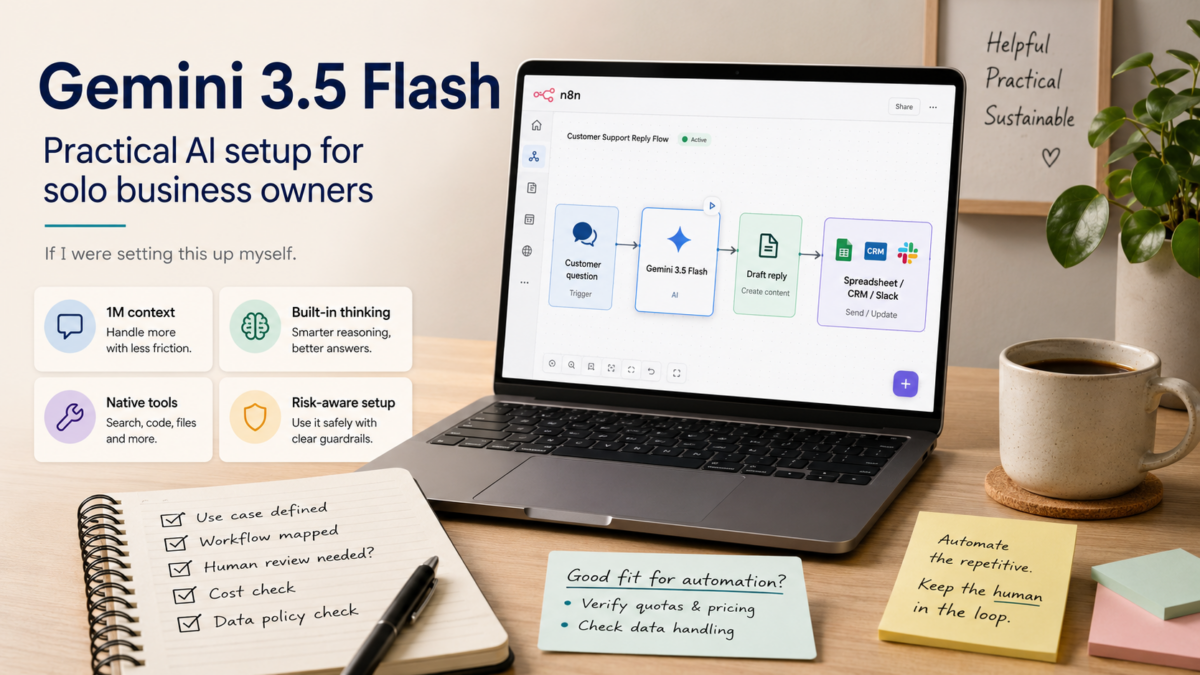
Every few months another AI model release lands in my inbox, and I end up wondering if I’ll ever actually use it before the next one ships. For solo business owners and freelancers, the challenge isn’t just understanding a new model—it’s figuring out whether it can sit inside a real automation workflow without handing it over to a developer. If I were looking at Gemini 3.5 from that angle right now, I’d want plain answers: What changed? How does it connect to the no-code tools I already use? And what do I need to watch out for before I run it on anything that costs money? This guide walks through the release from that non‑developer PM perspective, focusing on what Gemini 3.5 brings to AI automations you can set up yourself.

Table of Contents

  1. What Solo Owners Need to Know First About Gemini 3.5
  2. Why This Matters for Your Automation Stack Right Now
  3. Key Features and Advantages Specific to Gemini 3.5 Flash
  4. Hands‑On: Setting Up Your First n8n Workflow with Gemini 3.5
  5. How to Decide If Gemini 3.5 Fits Your Current Solo Setup
  6. Before You Go: Your Gemini 3.5 Setup Checklist
  7. Frequently Asked Questions
  8. Wrap-Up

What Solo Owners Need to Know First About Gemini 3.5

Gemini 3.5 Flash is the current multimodal model in the Gemini API, and the official documentation highlights a 1M‑token context window, up to 65k output tokens, built‑in thinking, and access to the same set of tools as previous models—things like Google Search, Maps, Code Execution, and more. That combination means you can feed in a long client email thread, a product catalog, or a 50‑page contract and get a structured summary back in a single call. However, those numbers come from Google’s own docs, and I haven’t personally benchmarked them against the previous generation. Two things I would flag immediately: the API is still pay‑as‑you‑go, so costs can creep up if you aren’t trimming your prompts, and the release cycle moves fast—the official changelog showed updates as recently as May 2026. For a solo business, that means any automation relying on Gemini 3.5 should build in a way to swap models or detect version changes without breaking every workflow.

💡 Check the latest details
Google’s official release notes and the Gemini Developer API pricing page are the best places to verify current limits and costs before you commit to a paid project.

Why This Matters for Your Automation Stack Right Now

For a lot of us running n8n, Make, or even a simple script on a Raspberry Pi, connecting an AI model isn’t the hard part—it’s getting results that are reliable enough to use in a client‑facing email or a billing review. Gemini 3.5 Flash, as described in the What’s new in Gemini 3.5 Flash, supports the Interactions API which includes tool use, thinking, and long‑context processing. From a solo operator’s perspective, that opens up a few practical doors: you can chain together a web search (via the Google Search tool), a data extraction step, and a formatted reply, all inside one model conversation, without writing a separate microservice for each part. The 1M‑token window also means you don’t have to split large documents into chunks—if you’re reviewing contracts or long project specs, you can pass the whole thing at once and ask for the key clauses. I’m not saying it’ll work flawlessly on the first try, but the capability is there in the official docs, and it aligns with the kind of end‑to‑end automation a solo founder typically wishes they had.

Key Features and Advantages Specific to Gemini 3.5 Flash

When I look at the feature list from the release notes and the Interactions API documentation, a few items stand out for someone building automations with no‑code tools. First, the 65k max output tokens is high enough that you can generate lengthy reports or SEO‑optimized articles without hitting a limit on day one. Second, the thinking capability (sometimes called chain‑of‑thought) can improve accuracy on multi‑step instructions, which helps when you’re asking the model to first classify a support ticket and then write a response. Third, the tool integration goes beyond basic function calling; it includes official connectors to Google’s own services, which can reduce the number of third‑party API keys you need to juggle. Finally, because the model is accessed through the standard Gemini API, you can plug it into any automation platform that supports HTTP requests—n8n, Make, even a custom Google Apps Script. None of this comes with a guarantee, and Google’s own models page makes it clear that you should test with your specific use case, but the building blocks are laid out.

Hands‑On: Setting Up Your First n8n Workflow with Gemini 3.5

If I were starting from zero this morning, I’d walk through these 5 steps inside n8n. It’s the same route I’ve taken with other APIs, and it doesn’t require any Python or package installations.

  1. Get your Gemini API key: Go to the Gemini API models page and look for the quickstart or ‘Get API key’ button. You’ll need a Google Cloud project. Create the key and copy it somewhere temporary—you won’t see it again after you leave the page.
  2. Set up an n8n HTTP Request node: In your n8n instance (cloud or self‑hosted), drag in an HTTP Request node. Set the method to POST and the URL to the Gemini API endpoint for gemini-3.5-flash (you can find the exact URL in the official Gemini API documentation). For authentication, choose ‘Header Auth’ and add a header named ‘x-goog-api-key’ with your key as the value.
  3. Send a test prompt with a small payload: In the body of the HTTP Request, switch to raw JSON and use a minimal request. For example: {"contents":[{"parts":[{"text":"Summarize this email: 'Hi John, the invoice is overdue by 15 days. Please remit payment at your earliest convenience.'"}]}]}. Run the node and check that the response contains a reasonable summary.
  4. Connect the node to a real trigger: Once the test works, replace the static text with data from a previous node—like a Gmail trigger or a webhook that receives a form submission. Use n8n’s expression editor to pass dynamic values into the prompt, and adjust the request body to include the actual content you want to process.
  5. Add cost and error handling: Add an ‘Error Trigger’ branch to catch API failures, and set up a simple node (like a Telegram notification) to alert you if the call fails or returns an unexpected result. Also, log the prompt length to a spreadsheet once a day so you can track how much you’re spending—small tests can hide the fact that a 100k‑token prompt costs more than you think.

💡 Security tip
Store your API key in n8n’s credential manager, not directly in the node configuration, so it isn’t accidentally exposed in export files or version control.

How to Decide If Gemini 3.5 Fits Your Current Solo Setup

I rarely adopt a new model just because the numbers look good; I compare it against what I’m already using and against the type of automations I actually run. If you’re currently on GPT‑4 or Claude and mostly doing simple text tasks, the biggest factor will be per‑request cost and output quality for your specific prompts. I’d run the same batch of 10‑20 real‑world prompts through both models and compare the results side by side—it’s tedious but takes less than an hour. For automations that lean heavily on Google services (Maps, Search, YouTube), Gemini’s native tools could eliminate the need for extra API accounts and simplify maintenance. The privacy angle also matters: if you handle customer PII or sensitive contracts, review the Gemini API data usage policy carefully; Google’s terms typically allow the model to use prompts for service improvements unless you’ve opted into a paid tier that offers different terms, but I haven’t personally verified the fine print for 3.5. For a small local business, I’d start with the lowest‑possible‑cost configuration and only scale up once I’ve confirmed the reliability over a week. For larger enterprise needs, Google also offers the Gemini Enterprise Agent Platform, but that’s a different beast with per‑seat pricing and is likely overkill for a freelancer or solo founder.

Before You Go: Your Gemini 3.5 Setup Checklist

  • Bookmark the official release notes and the pricing page so you’re not surprised by deprecations or cost changes.
  • Get an API key and set up a billing alert in Google Cloud—a hard cap if your account allows it, or at least an email notification at a low threshold.
  • Build a minimal n8n workflow with a dummy prompt and measure latency and the exact token consumption for a typical task.
  • Test the JSON output format to make sure it matches your workflow’s parsing expectations; faulty parsing breaks automations faster than a bad response.
  • If you plan to use tools like Google Search, verify that the tool returns the data you expect and that the cost per tool call is accounted for in your budget.
  • Decouple your workflow: store the model name in an n8n variable so you can switch to a newer model or fall back to an older one without touching every node.
  • Document a rollback plan: if the model returns unexpected results for a week, what node do you disable? How do you handle queued jobs?
  • Review the API’s data usage terms for your account type—if you’re on a free tier or evaluating, assume prompts may be used for training unless the policy explicitly says otherwise.

Frequently Asked Questions

Is Gemini 3.5 free to use?

Google offers a pay‑as‑you‑go pricing model for the Gemini API, and there is often a limited free quota for testing, but the exact limits change over time. The best way to check is the official Gemini Developer API pricing page. I’d never assume free usage for production automations—set up billing alerts even if you plan to stay within a free tier.

Can I connect Gemini 3.5 to n8n without writing any code?

Yes, using the HTTP Request node and the Gemini API’s REST endpoint. You don’t need to write Python or JavaScript, but you will need to configure the request body in JSON. The learning curve is mostly around understanding API authentication and building the correct JSON structure—both are well‑documented in the Google AI for Developers guide.

How does Gemini 3.5 compare to GPT‑4 for my client work?

There isn’t a one‑size‑fits‑all answer. From a non‑developer PM perspective, I’d run the same set of real prompts through both models and evaluate them on accuracy, output consistency, and cost per task. The choice often boils down to which ecosystem’s tools (Google vs. OpenAI) you already use and which model gives you more predictable JSON outputs for your automations.

What happens when Google updates the model—will my workflow break?

Google may release new versions or deprecate old ones, as noted in the release notes. To protect your workflow, store the model name in a variable and monitor the release notes periodically. I’d also build a simple test workflow that runs once a week against the same prompt and alerts you if the output structure changes.

Do I need to know anything about machine learning to use Gemini 3.5 effectively?

For basic automation tasks, no. The documentation provides straightforward REST API examples that you can copy and adapt. You’ll get the most out of it if you’re comfortable testing prompts and reading JSON responses, but that’s a skill many solo business owners pick up in an afternoon.

Wrap-Up

For me, the real test of any AI model isn’t the launch blog post—it’s whether it holds up in a quiet n8n workflow that’s been running unsupervised for a week. Gemini 3.5 Flash looks like a solid step forward for anyone already in Google’s ecosystem, and the tool integrations lower the barrier to building more complete automations without a separate developer. The main things I’d keep on my own six‑month radar are cost clarity (check the pricing page each month), breaking changes (glance at the release notes), and a fallback route in case the model’s output suddenly shifts. If you try the setup I outlined here, start small, log your token usage, and only hand it customer‑facing work after you’ve seen consistent results. The tools are good enough now—the missing piece is usually just the time to test them properly.

Automating Client Onboarding & Follow-Ups with n8n

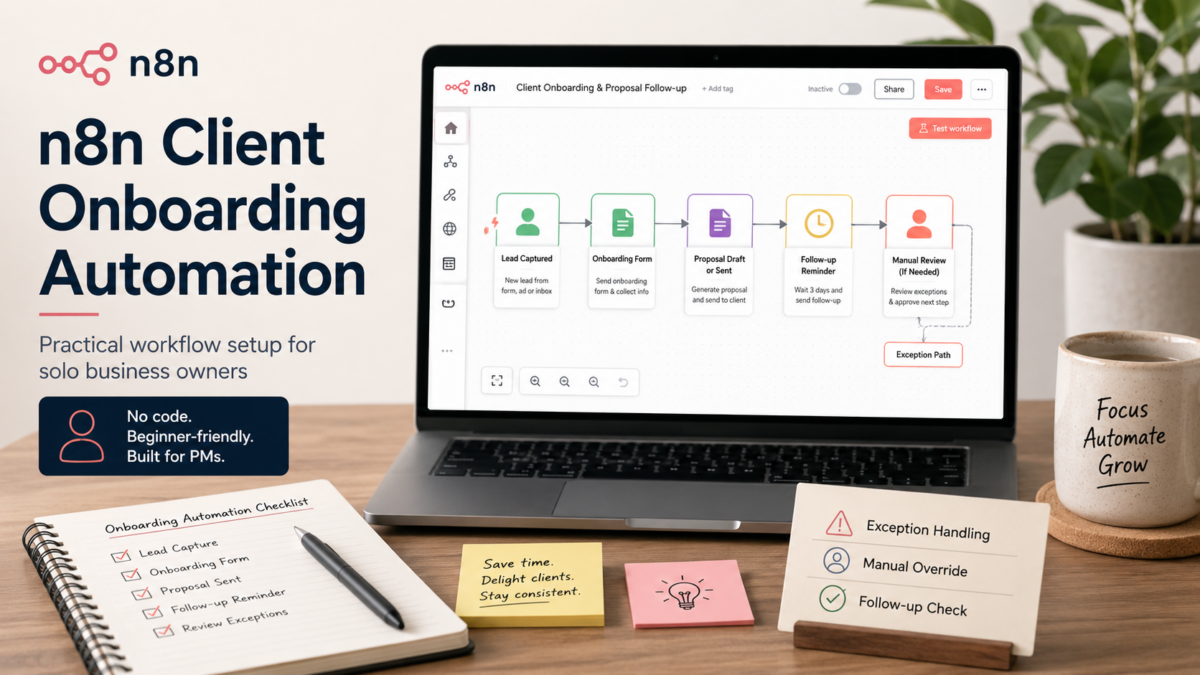
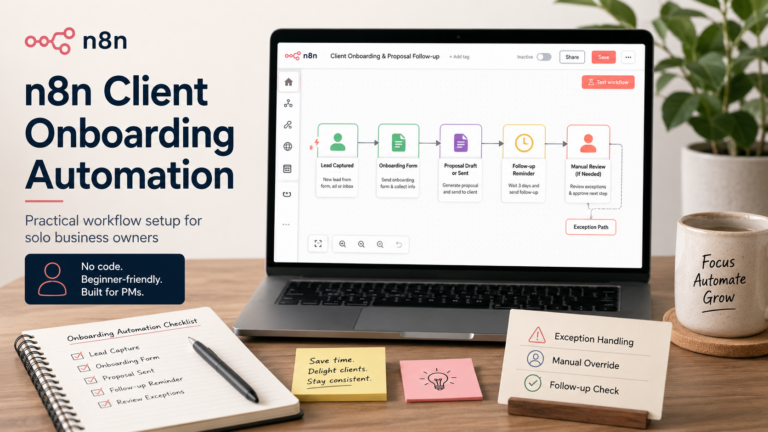
If you’ve ever lost a lead because a proposal slipped through the cracks or spent an evening pasting client details into a template, you know the small-but-repetitive tasks that eat into billable time. Most freelancer and solo-business advice points to popular marketing automations, but there’s a quieter, high-leverage area worth exploring: turning the handoff from “interested” to “working with you” into a single, semi-automatic flow. This article walks through a real-feasible n8n workflow for client onboarding and proposal follow-ups—what it does, what you’ll need, how to set it up from a non‑developer perspective, and the points where you should keep a human in the loop.

Table of Contents

  1. At a Glance: What This Automation Does (and the Exceptions Most People Miss)
  2. Why This Matters Now for Solo Business Owners
  3. The Workflow in Action: Core Components and What You’ll Need
  4. Step‑by‑Step: Setting Up a Client Onboarding Automation (with Zero Custom Code)
  5. When This Approach Makes Sense (and When It Doesn’t)
  6. Checklist and Watchouts Before Going Live
  7. Frequently Asked Questions
  8. Wrap-Up

At a Glance: What This Automation Does (and the Exceptions Most People Miss)

The core idea is straightforward: when a new client appears in your tracker (a Google Sheet or an Airtable), n8n creates a personalized proposal document, emails it, and then—crucially—follows up automatically if there’s no reply within a few days. Once the proposal is accepted, it triggers a small onboarding sequence: a welcome email, a shared folder link, and a task in your project tool. The hidden part that often trips up solo builders is exception handling. For example, what happens when a client emails back manually to say “got it” but doesn’t open the proposal link? Or when a follow-up email should pause over a holiday weekend? If I were preparing this alone, I’d spend extra time on pause conditions and simple status fields before trusting the automation with client-facing messages.

For a freelancer or solo consultant, this isn’t about replacing the relationship—it’s about removing the mechanical parts so you can focus on the conversation. According to n8n’s own case studies, businesses have used similar patterns to connect client portals with document management and email platforms, saving hours of manual handoffs. The underlying workflow architecture is well within reach of a non‑developer who has spent a few evenings testing nodes.

Why This Matters Now for Solo Business Owners

The pressure to handle more clients without adding administrative overhead isn’t new, but the tools to pull it off without a technical team have quietly caught up. In the n8n community, conversations in mid-2026 show a clear shift: more solo operators and small teams are moving beyond simple email automations to production‑grade sub‑workflows that handle error states and conditional branching. That’s less about advanced coding and more about structuring a workflow in a way that won’t break when real-world edge cases hit.

From a non‑developer PM perspective, the signal is that waiting until “someday” to automate onboarding means leaving time and client confidence on the table. The mini case study shared by a small accounting firm using n8n to connect their client portal with their document system and email platform shows that a well‑designed flow can reliably save several hours a week—even when the setup was done entirely with no‑code nodes.

The Workflow in Action: Core Components and What You’ll Need

Before opening the n8n editor, it helps to map the structure as three stages: proposal delivery, follow-up logic, and post‑acceptance onboarding. This prevents the all‑too‑common mistake of building a linear chain that falls over when a client doesn’t reply on schedule. The workflow will need access to a few services, and the exact choices depend on your existing stack. Below is a starting-point table for a solo consultant who uses Google Workspace and a task manager like Notion or Todoist.

Component Suggestion Notes for non‑developer setup
Trigger Google Sheets (new row) or Airtable ‘New Record’ webhook Start with Google Sheets if you already track leads there; use the ‘Watch Rows’ trigger to poll for changes every 5 minutes on the free n8n cloud plan.
Proposal generation Google Docs template + n8n Google Docs node Create a template with {{ClientName}} placeholders; n8n replaces them using data from the trigger row.
Email delivery Gmail node (or SMTP) Authenticate once via OAuth; use Send Email node with dynamic recipient and subject from the sheet.
Follow-up rule Wait node (delay) + IF node checking a status cell Set a 72‑hour delay, then check if the sheet’s ‘Status’ column still says ‘Sent’. If yes, send a single gentle reminder email.
Onboarding trigger Switch node watching ‘Status’ change to ‘Accepted’ When you manually change the status (or after a webhook reply parser), n8n sends a welcome email, copies a shared folder, and creates a task in Notion or ClickUp.

Step‑by‑Step: Setting Up a Client Onboarding Automation (with Zero Custom Code)

If I were setting this up myself on a weekend, I’d follow this exact order. The example assumes you have a n8n cloud account (free tier works) and a Google account. Each step includes the specific node and the failure check I’d look for when things don’t connect on the first try.

The flow below mirrors the structure used by the accounting firm case study adapted to a solo consultant’s proposal pipeline. I’ve kept it to four distinct stages because anything more complex risks turning into a debugging session that kills the momentum.

  1. Prepare the Google Sheet and template: Create a sheet with columns: ClientName, Email, Service, Status, ProposalLink. In Google Docs, write a short proposal template and insert placeholder text like <<ClientName>>. Share both the sheet and the template doc with the n8n service account email so the nodes can access them.
  2. Build the proposal generation node chain: In n8n, add a ‘Google Sheets – Watch Rows’ trigger pointing to your sheet. Set the polling interval to 5 minutes. Add a ‘Google Docs – Create Document from Template’ node, map the placeholders to the columns, and store the returned document URL back into the sheet’s ProposalLink column using an ‘Update Row’ node. Test with a manual row to see the entire sequence run once.
  3. Add the email and follow-up logic: After the row update, chain a ‘Gmail – Send Email’ node. For the follow-up, insert a ‘Wait’ node set to 72 hours, then a ‘Google Sheets – Get Row’ node to re‑read the Status. Connect an ‘IF’ node: if Status equals ‘Sent’, send a reminder email from a separate ‘Gmail’ node. If the status is anything else, end the branch. The first time I tried this, I forgot to handle the Sunday morning case—so I later added a condition to skip wait expiry if the date is a non‑work day.
  4. Wire the post‑acceptance onboarding: Use a separate trigger: a ‘Google Sheets – Watch Rows’ node that only fires when Status changes to ‘Accepted’. From there, add three parallel branches: one ‘Gmail – Send Email’ with a welcome message and a link to a shared Google Drive folder; one ‘Google Drive – Share Folder’ node (if you have the node installed) to automatically add the client’s email; and one ‘Notion – Create Page’ node (or HTTP Request to Todoist API) to create a task ‘Onboard new client: [ClientName]’. Because the onboarding should never fire twice, include a ‘Paid’ or ‘Onboarded’ flag column that you update after the first run.

💡 Manual oversight reminder
Even a smooth automation can send a follow-up after a client has already replied outside the tracked email thread. For a freelancer, I’d keep the follow-up emails in draft mode (using the Gmail ‘Create Draft’ node) and review them once a week until the flow has proven itself over a dozen closed proposals.

When This Approach Makes Sense (and When It Doesn’t)

This workflow fits a solo business owner who sends at least two to three custom proposals a month and already uses a spreadsheet or simple CRM for tracking. The time payback often begins after a few proposals—enough to justify the initial setup and testing. For a freelancer with irregular, highly customized proposals that require deep per‑client research, the document template piece may feel too rigid; instead, you might keep the proposal step manual and only automate the follow-up and onboarding half.

The accounting firm example succeeded because their documents were fairly standardized and the manual handoff was a known pain point. If your client acquisition is still in the stage where every proposal needs a 30‑minute research call before writing, then full automation may become a bottleneck rather than a help. The decision criteria are simple: if you can define a trigger condition and a template that covers 80% of cases, start with the automation and handle the remaining outliers manually.

Checklist and Watchouts Before Going Live

Before letting the workflow touch real clients, I’d run through this list. It’s based on the common mistakes visible in community discussions—like the May 2026 thread about hiring n8n developers, where maintainability and error handling were the top concerns even for experienced builders.

  • Permission audit: confirm the n8n service account can access only the specific sheet rows and doc files it needs, not your entire Drive.
  • Dry run with test data: send a proposal to your own email and let the follow-up actually fire to see the timing with a weekend in between.
  • Status column consistency: the automation relies on exact values like ‘Sent’ and ‘Accepted’; any typo or extra space will break the IF branches.
  • Draft mode for the first 10 clients: use the Gmail ‘Create Draft’ node instead of ‘Send Email’ for follow-ups until you’re confident.
  • Add a manual pause switch: a simple checkbox column (‘PauseAutomation’) that the Wait node reads before sending any reminder; if the column is TRUE, skip everything.
  • Version your workflow: duplicate the workflow before making major changes, because n8n’s undo stack won’t always save you from a broken connection after a node rename.

Frequently Asked Questions

Do I need to self-host n8n to use this workflow securely with client data?

Not necessarily. The n8n cloud free tier can run polling-based triggers securely if you limit the data passed through and use OAuth. However, if you handle sensitive financial documents, a self-hosted instance gives you full control over where data sits. For a solo business owner, starting on cloud and later moving to self-hosted (using Docker on a $5–10/month VPS) is a common path.

What’s the real cost to run this? Will the free tier be enough?

n8n’s free cloud plan offers a limited number of active workflows and executions per month—the exact limits are available on n8n’s pricing page. For a freelancer managing a few proposals a week, this is usually sufficient, but you should confirm the current limits on the n8n pricing page.

Can I really set this up without a developer if I’ve never used n8n before?

Yes—the nodes used here (Google Sheets, Google Docs, Gmail, IF, Wait) are visual and don’t require code. The biggest challenge is debugging authentication errors, which n8n’s error messages now explain more clearly than they did two years ago. Budget a weekend afternoon to watch a few free n8n introduction videos and connect the first flow.

How do I handle clients who use different email threads or reply outside the automated chain?

That’s why the draft-based follow-up option is essential. No automation can reliably detect a human reply sent to a different email address or via a phone call. The status cell in the spreadsheet is your manual override: whenever you hear from the client, update it and let the workflow stop attempting further follow-ups.

Wrap-Up

The difference between dreaming about automation and actually using it often comes down to picking one tight, high‑impact flow and running it in a controlled way. For a solo business owner, the proposal‑to‑onboarding handoff is a strong candidate because it directly affects cash flow and client perception. If you’re still unsure where to start, spend 20 minutes listing the exact manual steps you took for your last three clients—then look for the two steps that felt most like copy‑paste. That’s the spot where a small n8n workflow can begin earning its keep, without turning into a maintenance monster.