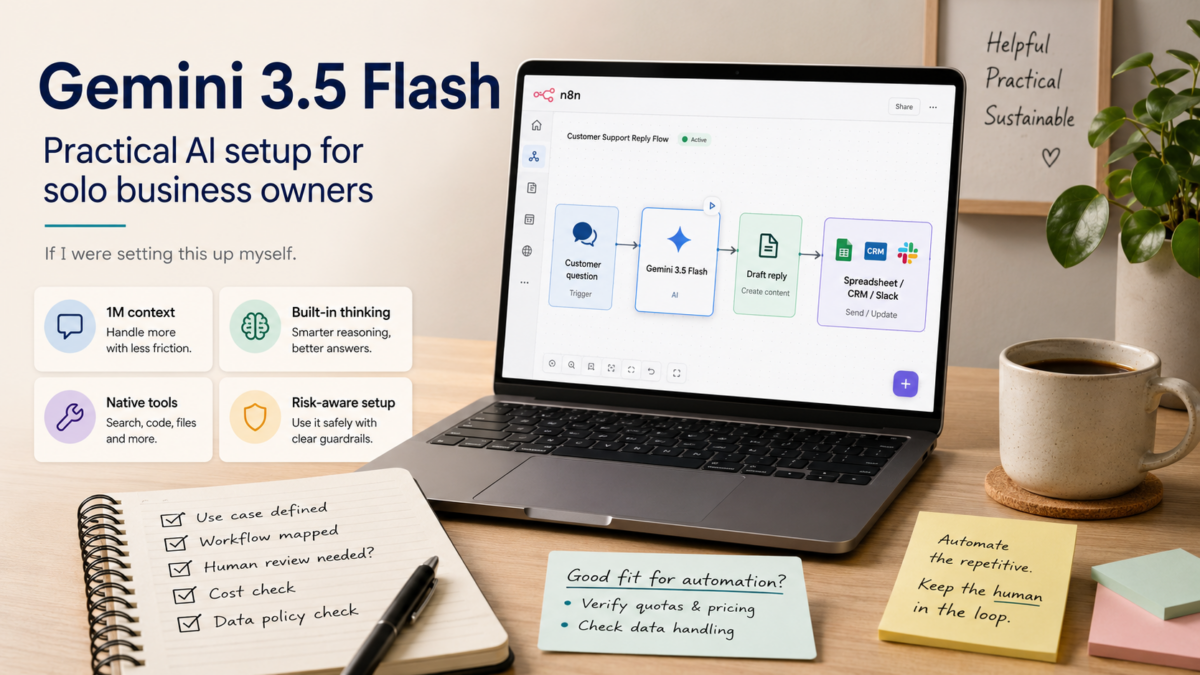
Every few months another AI model release lands in my inbox, and I end up wondering if I’ll ever actually use it before the next one ships. For solo business owners and freelancers, the challenge isn’t just understanding a new model—it’s figuring out whether it can sit inside a real automation workflow without handing it over to a developer. If I were looking at Gemini 3.5 from that angle right now, I’d want plain answers: What changed? How does it connect to the no-code tools I already use? And what do I need to watch out for before I run it on anything that costs money? This guide walks through the release from that non‑developer PM perspective, focusing on what Gemini 3.5 brings to AI automations you can set up yourself.
What Solo Owners Need to Know First About Gemini 3.5
Gemini 3.5 Flash is the current multimodal model in the Gemini API, and the official documentation highlights a 1M‑token context window, up to 65k output tokens, built‑in thinking, and access to the same set of tools as previous models—things like Google Search, Maps, Code Execution, and more. That combination means you can feed in a long client email thread, a product catalog, or a 50‑page contract and get a structured summary back in a single call. However, those numbers come from Google’s own docs, and I haven’t personally benchmarked them against the previous generation. Two things I would flag immediately: the API is still pay‑as‑you‑go, so costs can creep up if you aren’t trimming your prompts, and the release cycle moves fast—the official changelog showed updates as recently as May 2026. For a solo business, that means any automation relying on Gemini 3.5 should build in a way to swap models or detect version changes without breaking every workflow.
|
💡 Check the latest details |
Why This Matters for Your Automation Stack Right Now
For a lot of us running n8n, Make, or even a simple script on a Raspberry Pi, connecting an AI model isn’t the hard part—it’s getting results that are reliable enough to use in a client‑facing email or a billing review. Gemini 3.5 Flash, as described in the What’s new in Gemini 3.5 Flash, supports the Interactions API which includes tool use, thinking, and long‑context processing. From a solo operator’s perspective, that opens up a few practical doors: you can chain together a web search (via the Google Search tool), a data extraction step, and a formatted reply, all inside one model conversation, without writing a separate microservice for each part. The 1M‑token window also means you don’t have to split large documents into chunks—if you’re reviewing contracts or long project specs, you can pass the whole thing at once and ask for the key clauses. I’m not saying it’ll work flawlessly on the first try, but the capability is there in the official docs, and it aligns with the kind of end‑to‑end automation a solo founder typically wishes they had.
Key Features and Advantages Specific to Gemini 3.5 Flash
When I look at the feature list from the release notes and the Interactions API documentation, a few items stand out for someone building automations with no‑code tools. First, the 65k max output tokens is high enough that you can generate lengthy reports or SEO‑optimized articles without hitting a limit on day one. Second, the thinking capability (sometimes called chain‑of‑thought) can improve accuracy on multi‑step instructions, which helps when you’re asking the model to first classify a support ticket and then write a response. Third, the tool integration goes beyond basic function calling; it includes official connectors to Google’s own services, which can reduce the number of third‑party API keys you need to juggle. Finally, because the model is accessed through the standard Gemini API, you can plug it into any automation platform that supports HTTP requests—n8n, Make, even a custom Google Apps Script. None of this comes with a guarantee, and Google’s own models page makes it clear that you should test with your specific use case, but the building blocks are laid out.
Hands‑On: Setting Up Your First n8n Workflow with Gemini 3.5
If I were starting from zero this morning, I’d walk through these 5 steps inside n8n. It’s the same route I’ve taken with other APIs, and it doesn’t require any Python or package installations.
- Get your Gemini API key: Go to the Gemini API models page and look for the quickstart or ‘Get API key’ button. You’ll need a Google Cloud project. Create the key and copy it somewhere temporary—you won’t see it again after you leave the page.
- Set up an n8n HTTP Request node: In your n8n instance (cloud or self‑hosted), drag in an HTTP Request node. Set the method to POST and the URL to the Gemini API endpoint for gemini-3.5-flash (you can find the exact URL in the official Gemini API documentation). For authentication, choose ‘Header Auth’ and add a header named ‘x-goog-api-key’ with your key as the value.
- Send a test prompt with a small payload: In the body of the HTTP Request, switch to raw JSON and use a minimal request. For example: {"contents":[{"parts":[{"text":"Summarize this email: 'Hi John, the invoice is overdue by 15 days. Please remit payment at your earliest convenience.'"}]}]}. Run the node and check that the response contains a reasonable summary.
- Connect the node to a real trigger: Once the test works, replace the static text with data from a previous node—like a Gmail trigger or a webhook that receives a form submission. Use n8n’s expression editor to pass dynamic values into the prompt, and adjust the request body to include the actual content you want to process.
- Add cost and error handling: Add an ‘Error Trigger’ branch to catch API failures, and set up a simple node (like a Telegram notification) to alert you if the call fails or returns an unexpected result. Also, log the prompt length to a spreadsheet once a day so you can track how much you’re spending—small tests can hide the fact that a 100k‑token prompt costs more than you think.
|
💡 Security tip |
How to Decide If Gemini 3.5 Fits Your Current Solo Setup
I rarely adopt a new model just because the numbers look good; I compare it against what I’m already using and against the type of automations I actually run. If you’re currently on GPT‑4 or Claude and mostly doing simple text tasks, the biggest factor will be per‑request cost and output quality for your specific prompts. I’d run the same batch of 10‑20 real‑world prompts through both models and compare the results side by side—it’s tedious but takes less than an hour. For automations that lean heavily on Google services (Maps, Search, YouTube), Gemini’s native tools could eliminate the need for extra API accounts and simplify maintenance. The privacy angle also matters: if you handle customer PII or sensitive contracts, review the Gemini API data usage policy carefully; Google’s terms typically allow the model to use prompts for service improvements unless you’ve opted into a paid tier that offers different terms, but I haven’t personally verified the fine print for 3.5. For a small local business, I’d start with the lowest‑possible‑cost configuration and only scale up once I’ve confirmed the reliability over a week. For larger enterprise needs, Google also offers the Gemini Enterprise Agent Platform, but that’s a different beast with per‑seat pricing and is likely overkill for a freelancer or solo founder.
Before You Go: Your Gemini 3.5 Setup Checklist
- Bookmark the official release notes and the pricing page so you’re not surprised by deprecations or cost changes.
- Get an API key and set up a billing alert in Google Cloud—a hard cap if your account allows it, or at least an email notification at a low threshold.
- Build a minimal n8n workflow with a dummy prompt and measure latency and the exact token consumption for a typical task.
- Test the JSON output format to make sure it matches your workflow’s parsing expectations; faulty parsing breaks automations faster than a bad response.
- If you plan to use tools like Google Search, verify that the tool returns the data you expect and that the cost per tool call is accounted for in your budget.
- Decouple your workflow: store the model name in an n8n variable so you can switch to a newer model or fall back to an older one without touching every node.
- Document a rollback plan: if the model returns unexpected results for a week, what node do you disable? How do you handle queued jobs?
- Review the API’s data usage terms for your account type—if you’re on a free tier or evaluating, assume prompts may be used for training unless the policy explicitly says otherwise.
Frequently Asked Questions
Is Gemini 3.5 free to use?
Google offers a pay‑as‑you‑go pricing model for the Gemini API, and there is often a limited free quota for testing, but the exact limits change over time. The best way to check is the official Gemini Developer API pricing page. I’d never assume free usage for production automations—set up billing alerts even if you plan to stay within a free tier.
Can I connect Gemini 3.5 to n8n without writing any code?
Yes, using the HTTP Request node and the Gemini API’s REST endpoint. You don’t need to write Python or JavaScript, but you will need to configure the request body in JSON. The learning curve is mostly around understanding API authentication and building the correct JSON structure—both are well‑documented in the Google AI for Developers guide.
How does Gemini 3.5 compare to GPT‑4 for my client work?
There isn’t a one‑size‑fits‑all answer. From a non‑developer PM perspective, I’d run the same set of real prompts through both models and evaluate them on accuracy, output consistency, and cost per task. The choice often boils down to which ecosystem’s tools (Google vs. OpenAI) you already use and which model gives you more predictable JSON outputs for your automations.
What happens when Google updates the model—will my workflow break?
Google may release new versions or deprecate old ones, as noted in the release notes. To protect your workflow, store the model name in a variable and monitor the release notes periodically. I’d also build a simple test workflow that runs once a week against the same prompt and alerts you if the output structure changes.
Do I need to know anything about machine learning to use Gemini 3.5 effectively?
For basic automation tasks, no. The documentation provides straightforward REST API examples that you can copy and adapt. You’ll get the most out of it if you’re comfortable testing prompts and reading JSON responses, but that’s a skill many solo business owners pick up in an afternoon.
Wrap-Up
For me, the real test of any AI model isn’t the launch blog post—it’s whether it holds up in a quiet n8n workflow that’s been running unsupervised for a week. Gemini 3.5 Flash looks like a solid step forward for anyone already in Google’s ecosystem, and the tool integrations lower the barrier to building more complete automations without a separate developer. The main things I’d keep on my own six‑month radar are cost clarity (check the pricing page each month), breaking changes (glance at the release notes), and a fallback route in case the model’s output suddenly shifts. If you try the setup I outlined here, start small, log your token usage, and only hand it customer‑facing work after you’ve seen consistent results. The tools are good enough now—the missing piece is usually just the time to test them properly.
Related Posts